
Data & Privacy
Know what stays local and how to take it with you.
The authoritative database, ledger and encrypted originals live on this iPhone. Selected content can leave through disclosed AI.
Current app path
Settings → Data & Documents; Settings → Security & Backup; Ledger → export; Settings → Data ManagementThese controls are externally available. Live multi-device sync is not.Required
- A strong portable-backup password
- Device authentication and typed confirmation for deletion
Optional
- A retention period
- Ledger filters before export
- A backup destination
What can block completion
- Wrong backup password
- Insufficient storage
- Unmatched deletion confirmation
- Damaged archive
- Local financial data
- The working database and originals remain local. iOS controls iPhone backup timing and availability.
- Privacy or AI boundary
- Managed AI and BYOK are external boundaries. The gateway retains no request or response content; provider abuse-monitoring terms may apply.
- If it does not work
- Keep the original device unchanged until restore is verified. Never email a backup archive or export.
01
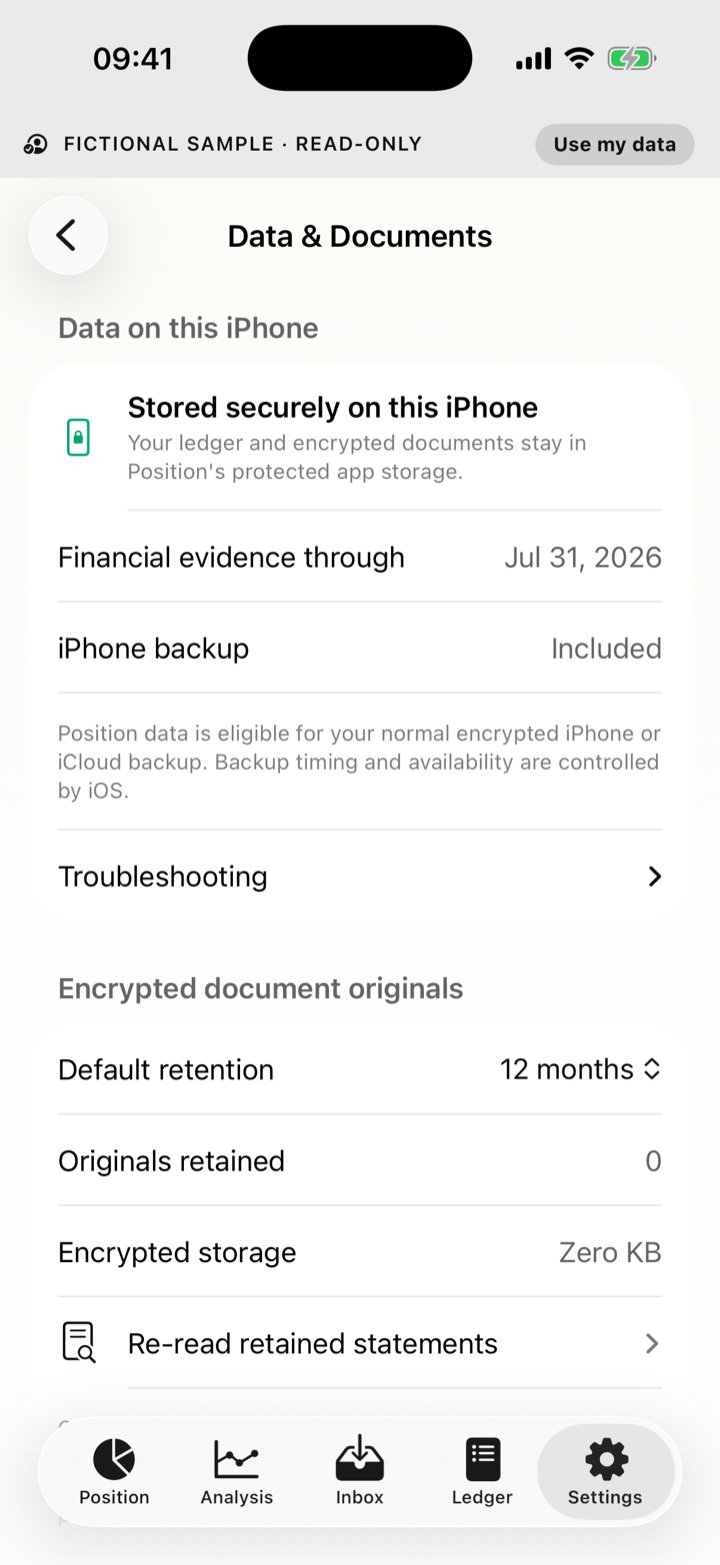
Documents and retention
- Open Settings → Data & Documents.
- Review protected storage and encrypted-original retention.
- Use Re-read retained statements or Recalculate position only when you intend to rebuild derived results.
02
Create or restore a backup
- Open Settings → Security & Backup.
- Choose Create encrypted backup, set a password, then Save or share backup.
- To restore, choose Choose backup to restore and enter the password.
- Verify accounts and recent evidence before deleting the original device data.
03
Export CSV or PDF
- Set Ledger filters.
- Open the export menu.
- Choose Export filtered CSV or Export filtered PDF.
- Treat the result as sensitive financial data.
04
Disconnect and delete
- Disconnecting managed AI preserves the ledger.
- Delete managed AI account removes managed identity, not local data.
- Delete local data from this iPhone removes local records after confirmation.
- Delete everything combines both scopes; read the confirmation and back up first if needed.
05
Fictional example
The approved frame shows storage, retention and backup controls with fictional data. Zero retained originals describes the demo, not a promise that originals are never retained.
06
Understand every destination
Storage on the iPhone, transient AI processing and content-free service metadata are separate destinations.
See how financial data is handled